DX Reminder on a Spare Android Phone: A Dedicated DX Alarm
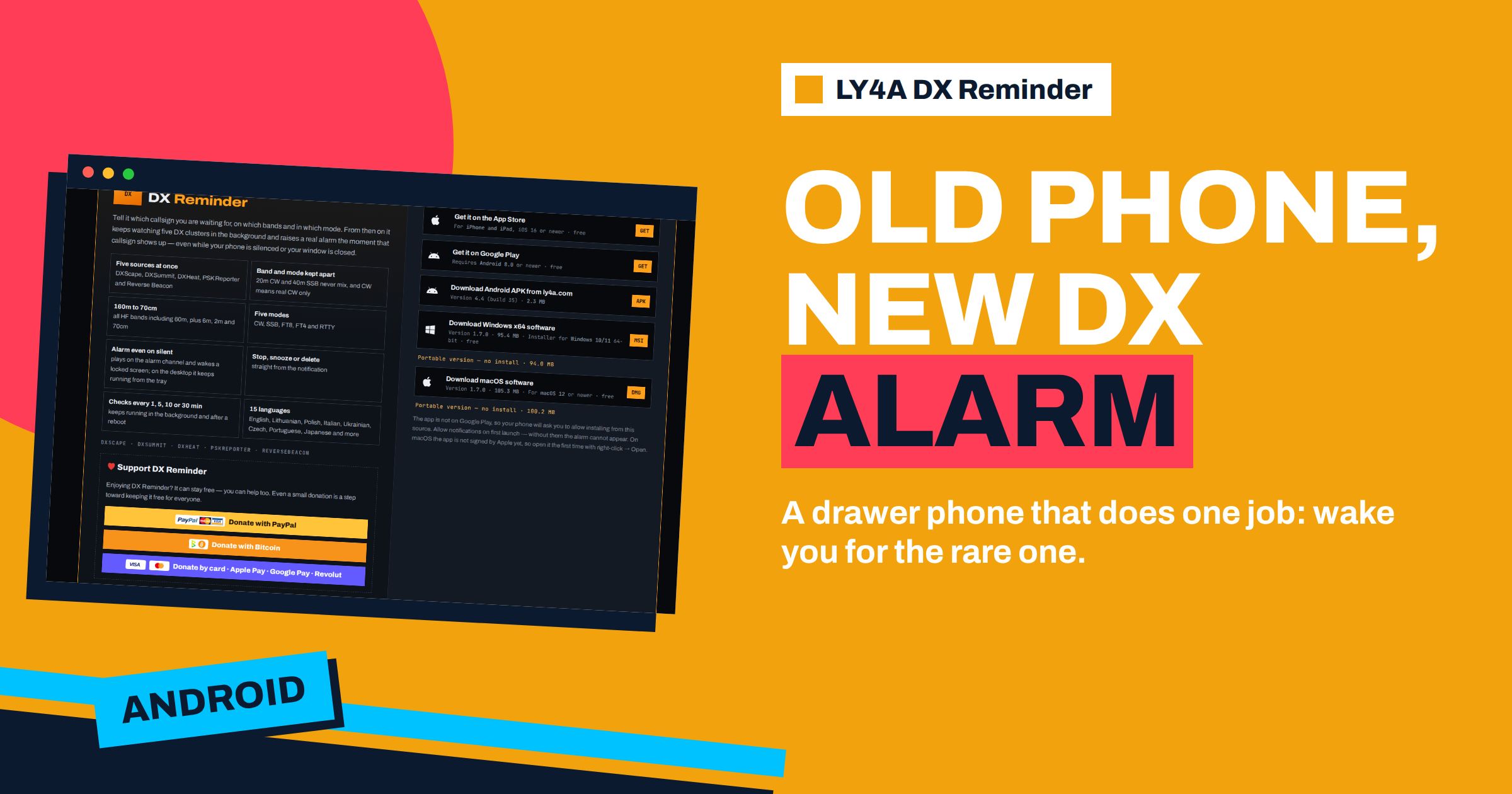
Most radio amateurs have an old phone in a drawer. It no longer runs the newest apps, the battery is tired and it was replaced years ago, but it still has a screen, a speaker, a Wi-Fi radio and a charging port. That is everything a DX alarm needs. This guide explains how to use a DX Reminder spare phone as a dedicated alarm that sits beside the radio or the bed and does one job: it watches for the callsigns you are waiting for and rings loudly when one is spotted. The idea is simple, but a few details decide whether the old phone is reliable, so the steps below follow what the app needs and what Android does to background apps.
Why a Dedicated Phone Makes Sense
Your daily phone is the worst place for an alarm that must never fail. It is in a pocket, on silent in meetings, switched to battery saver in the evening, restarted for updates and carried away from the house. A dedicated phone has none of these problems. It stays in one place, it stays on a charger, it has no other apps competing for attention and it does not matter if you take your main phone to the shops. The alarm is then a piece of shack equipment, like a clock or a rotator control box.
There is a second benefit. A rare station can be on the air at three in the morning, and many people do not want a phone with their messages and calls next to the pillow with the sound at full volume. A spare phone has only the DX alarm on it, so the sound is the alarm and nothing else. It also lets you keep your main phone with its own list for travel, and use the spare one at home. Because LY4A DX Reminder has no account, each device keeps its own list of callsigns, so the two phones do not interfere with each other. The privacy page of the project says that the callsigns, bands, modes and settings stay on the device, so the spare phone needs to be set up once and then it is independent.
What the App Needs From the Phone
The Android app is small. The current version is 4.4, build 35, and the file is about 2.3 MB, so it fits on almost any old handset. It needs Android 8.0 or newer, which was released in 2017, so many phones from that year onwards qualify (see the Android version history). If the old phone is older than that, it is not suitable, and a Windows or Mac computer in the shack with the desktop app is the alternative described in the guide to the desktop version of DX Reminder.
| Requirement | Why it matters |
|---|---|
| Android 8.0 or newer | The minimum version the app supports |
| Internet through Wi-Fi or mobile data | The app asks the DX services for spots, so it needs a connection to hear about them |
| Notifications allowed | Without them the alarm cannot appear |
| Alarms and reminders permission | Without it the system may delay the checks |
| A power source | Background watching uses the battery steadily, so keep the phone charging |
A mobile data plan is not needed if the phone stays on your home Wi-Fi. A SIM card with no plan is also fine, since the phone never makes calls. What does matter is that the Wi-Fi is reliable. If the router restarts every night, the phone will reconnect by itself, but think about whether the router sits on a timer.
Installing and Setting Up the Old Phone
The old phone installs the app from the APK file on ly4a.com. Open the page in the phone browser, tap the Android download button and accept the browser warning about this file type. When Android asks to allow installing apps from this source, turn it on for the browser, go back and tap Install, then Open. On the first launch allow notifications, and if the app asks for Alarms and reminders, allow that too. These are the same steps as on any Android phone, and they are listed on the home page.
After that, set up the list as described in the guide to the first callsign and alarm: add each callsign, tick the bands and modes where you could work it and choose how often the app checks, every 1, 5, 10 or 30 minutes. For a dedicated alarm the short interval is the sensible choice, because the phone is on a charger and the battery use does not matter. The alarm interval, which decides how often the same station may ring again, is a separate setting.
It is worth thinking about your own alarm sound. Since version 4.2 the app lets you choose one of the system alarm sounds or any music file on the phone. On a dedicated device you can choose something that is impossible to ignore, and you can set the volume of the alarm channel to a level that wakes you without frightening the household. If the sound file is later deleted, the system sound comes back instead of the alarm falling silent.
Making the Phone Reliable
Android is built to save battery, and a phone that sits unused is exactly what its battery savers target. The app warns you about this. Since version 4.2 the settings check two things that otherwise fail silently: whether the system gives full-screen alarms to the app, which Android 14 and later do only for apps treated as alarm clocks, and whether battery saving can pause the watching. The settings lead you to the right system screen. Go through those screens on the spare phone and allow what is asked. The article on making the alarm ring on a silent phone explains each of them in more detail.
Three more habits help a dedicated device.
- Keep it on the charger. Use a short, good cable and a proper charger. Place the phone on a hard surface where it can cool, not under a pillow or in a case that traps heat.
- Keep the lock simple. The alarm wakes a locked screen, so you do not need the screen on. Do not use a screen lock that you cannot open in the middle of the night. A simple lock or none at all is fine for a phone that holds no personal data.
- Restart it once and test. The app keeps running after a reboot, and you should prove it. Restart the phone, wait a few minutes and run a test with a callsign that is on the air right now.
The testing procedure is in the checklist for testing the alarm. Run it on the spare phone before you rely on it, and again after any system update.
A Word About Old Batteries
An old phone that stays on a charger for years brings one real risk, and it deserves attention. A tired lithium-ion battery can swell. If the back of the phone lifts, the screen bulges or the case gets hot, stop using it. Unplug it, move it away from anything flammable and take it to a battery recycling point. Do not charge a swollen phone. If the battery is removable, a new one is cheap. If it is not, choose another phone, because the spare-phone idea must never become a fire hazard in the room where you sleep.
A good practice is to check the phone once a month, when you also look at the shack for loose cables, as in the guide to electrical safety in the ham shack. A phone that has been fine for a year can still be removed from service when it starts to heat. Some people also put the phone on a timer or a smart plug that turns the charger off for an hour a day. That can reduce the heat, but it also means the phone runs on its own battery for that hour, so it has to be sure to reconnect.
Where to Put the Phone and What to Expect
Put the phone where you will hear it and where it has a good Wi-Fi signal. Beside the radio is natural for daytime chasing. Beside the bed is natural for the night alarm. If you want both, you can use the spare phone beside the bed and keep the desktop app in the shack, as described in the article on the tray app at a club station. The two devices work independently, so a callsign has to be added on each of them.
Remember what the alarm is. DX Reminder reads public DX clusters and other services, which the terms of use describe as sources the project does not control, so a spot may be late, incomplete or wrong. The phone on its own is not a guarantee. It is a very good attention tool, and you still need to listen on the band. When the alarm rings, the steps in the guide to the first sixty seconds after the alarm tell you what to do next.
A Sample Setup for a Week of Chasing
A concrete example shows how the pieces fit together. Suppose a DXpedition is announced for next week on three bands, and you need the entity as a new one. On the spare phone you add the callsign of the expedition, tick 20, 17 and 15 m for CW and for FT8 and leave everything else unticked. You set the check interval to one minute, because the phone is on the charger. You leave the alarm interval at a value that lets the station ring again after ten minutes, so a long run of spots does not keep waking the house. You put the phone on the shelf beside the radio, with the volume of the alarm channel set so that it is clearly audible from the bed.
When the expedition starts, the phone does the watching. You can sleep, cook, work or operate another band. If the alarm rings, you read the frequency, the mode, the spotter and the source on the notification, as explained in the guide to the anatomy of an alert, and you walk to the radio. If the alarm does not ring for two days, that is also information: the expedition may be late, or the bands may be closed to you, and a look at the cluster page confirms it. The point is that your attention is spent on the band and not on a browser tab.
After the expedition, delete the callsign or switch the combinations off. The app keeps the frequency and tolerance of a combination that you only switched off, so a later reminder for the same band and mode comes back with its earlier settings. A short list of live callsigns is easier to trust than a long list of old ones, and it keeps the alarm meaningful. A dedicated phone is a good place to keep the habit of tidying the list, because it is the only thing on the screen.
The Bottom Line
A spare Android phone is a cheap and effective dedicated DX alarm. Install the app from ly4a.com, allow notifications and the alarm permissions, choose the shortest check interval, leave the phone on a charger and Wi-Fi, and test it after a restart. Watch the battery for swelling, and keep the phone where you can hear it. Then your daily phone is free to be a normal phone, and the old one does one job well.
Frequently Asked Questions
Which Android version does the spare phone need?
The Android app needs Android 8.0 or newer. If the old phone runs an older version, the app cannot be installed on it, and a computer with the desktop version is the better choice for a dedicated alarm.
Does the spare phone need a SIM card?
No. The app only needs an internet connection to ask the DX services for spots, and a home Wi-Fi network is enough. The phone never needs to make calls, so a SIM is optional.
Will the callsigns on my main phone appear on the spare one?
No. DX Reminder has no account, and the callsigns, bands, modes and settings are kept on each device. Add the callsigns again on the spare phone. This also means the two devices cannot disturb each other.
Is it safe to leave an old phone on the charger all the time?
It is usually fine with a good charger and a healthy battery, but old lithium batteries can swell. Check the phone regularly, keep it on a hard, cool surface and stop using it at once if it heats up or the case lifts.
Should I choose the shortest check interval?
On a phone that stays on a charger, yes. The app can check every 1, 5, 10 or 30 minutes, and a shorter interval means a spot is noticed sooner. The battery drain that matters on a daily phone does not matter on a dedicated one.