DX Reminder Update: Supported Versions and What Stays
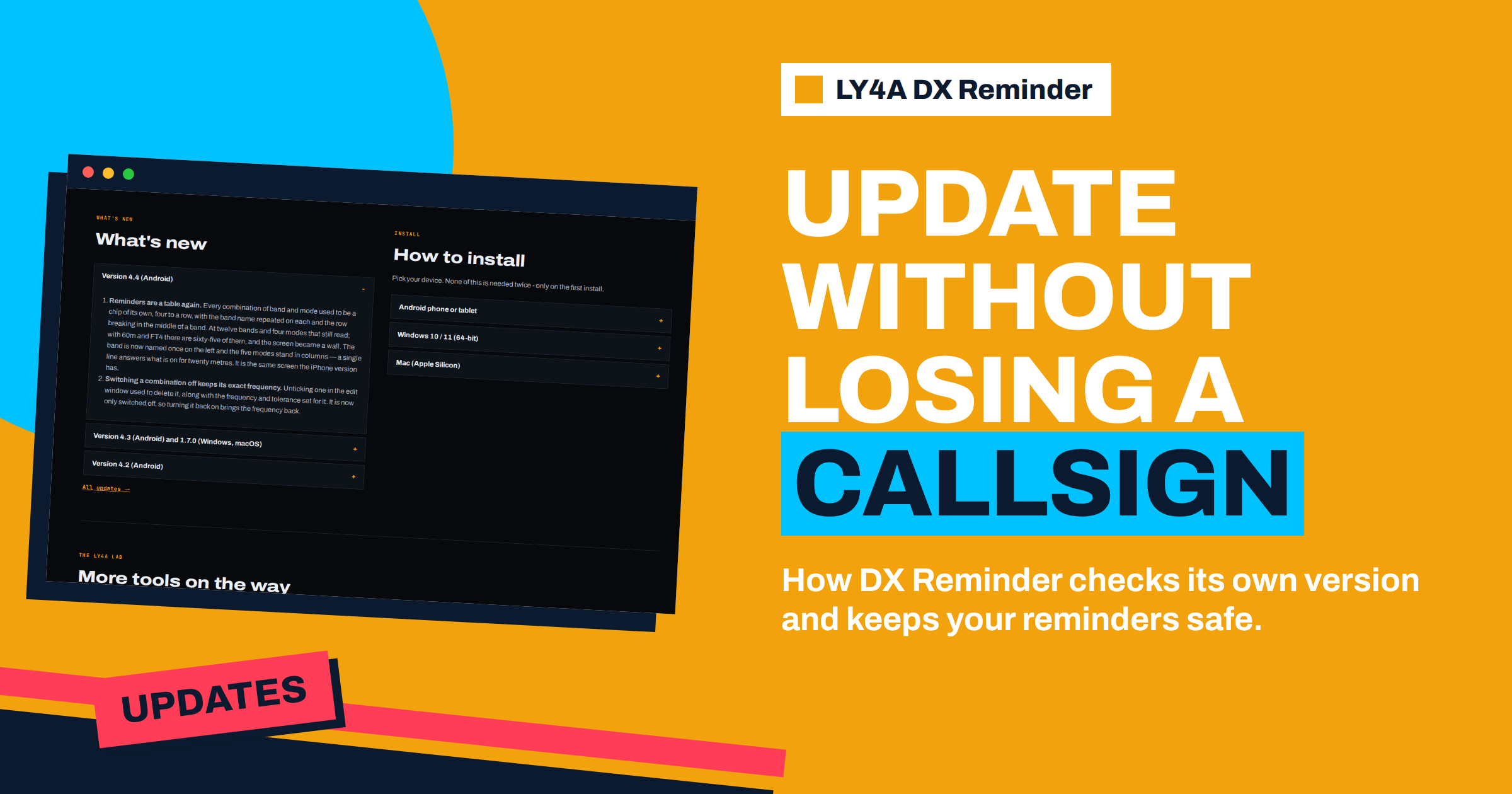
An alarm app has one job, and it must do it on the day that the rare station appears. That is why the way an app is updated matters more than for most software. A version that is too old might lose contact with the services it depends on, and an update that wipes your settings would be worse than no update. This guide explains how an DX Reminder update works on each platform: how the app learns that a new version exists, how it learns whether your own version is still supported, what it asks you to do, and what is kept when you install the new file. It follows the notes on the project page ly4a.com and the list of changes, and where the project does not say something, the guide says so rather than guessing.
Where the Versions Stand Today
The home page lists the current builds. The Android app is at version 4.4 (build 35), and the Windows and macOS apps are at version 1.7.0. The iPhone app is distributed through the App Store, so its version follows the store. The platforms have separate numbers, because each one is built and released on its own. The page also publishes a list of what changed in each release, and it is worth reading, since it explains the reasons behind the changes and not only the changes themselves. For a longer story of the earlier releases, see the article about the version history of DX Reminder.
| Platform | How you get it | How you update | Your data |
|---|---|---|---|
| iPhone and iPad | App Store, iOS 16 or newer | Through the App Store | Kept; watching is done by the site |
| Android | APK from ly4a.com, Android 8.0 or newer | Download the new APK | Kept on the device |
| Windows | MSI installer or portable version from ly4a.com | Download the new file and run it | Kept on the device |
| macOS | DMG or portable version from ly4a.com | Download the new file | Kept on the device |
How the App Learns About a New Version
The apps check ly4a.com for new versions. The project says that the desktop program checks at startup, and that since version 1.7.0 it also learns whether the installed version is still supported. The Android app has had a check for newer versions for some time, and its version 4.3 added the same second question. Until then, an app could only say that a newer version exists. After the change, it can also know whether yours is still supported. The difference sounds small, but it changes what the app can do. A newer version existing means that you may want to update. An old version no longer being supported means that you have to.
Supported, Behind and No Longer Supported
The list of changes for version 4.3 and 1.7.0 describes the rules in three states.
- Current or supported. The app works as usual. It may tell you that a newer version exists, which you can read and act on when it suits you.
- Behind. A version that has fallen behind is asked to update at every start. The app keeps working, but it reminds you each time it opens.
- No longer supported. A version that the project has stopped supporting shows only the download screen until it is updated. The app will not carry on with its normal screens.
The project adds a sentence that matters for planning: nothing changes today. The limits are set on the site when they are needed, which means that the project can raise the minimum version when a change on the server side or in the cluster services makes old versions unreliable, but it has not done so for the current builds. The practical meaning is that an old installation will not suddenly stop at some random date. If a limit is set, you will see the update request first, with the download in front of you, and you can act.
What Is Kept When You Update
The project states that your callsigns and reminders survive the update either way, whether the version is behind or no longer supported. This is what you want from an alarm tool: you do not have to type your wanted list again, and the bands and modes you chose stay. According to the privacy page, the apps keep the callsigns, the bands and modes, the settings and the spots already seen in the app’s own storage on the device. An update replaces the program and leaves this storage in place. On iPhone the list is held by the site under an anonymous identifier issued at the first launch, as the privacy page explains.
Even so, it is a good habit to keep your own list of wanted callsigns in a text file, as suggested in the article about the wanted list. A reinstall from scratch, a new phone or a new computer will start with an empty app, since there is no account that could restore the list. The text file turns a new start into a five-minute job.
How to Read a Version Number
The Android version appears as 4.4 with a build number, 35. The first part is the version that people talk about, and the build number counts each file that was produced, so two files with the same version but different builds are possible. When you compare, look at the version first and the build second. For the general idea behind such numbers, see the background on software versioning. On the desktop the number has three parts, 1.7.0, where a change in the last digit usually means a smaller correction and a change in the middle one a new feature. The project does not publish a rule for this, so use the numbers as a guide and read the list of changes for the facts. One more habit helps: write the version that you run in your station notes, next to the date. If something changes in the behaviour of the alarm, you will know which version you had when it worked.
Updating on Android
Because the app reaches the phone as an APK from ly4a.com, an update is a new download from the same page: download the new APK, open it and let Android install it over the existing app. Because the permission to install from your browser was given for the first install, the phone may ask again if you turned it off afterwards. Your callsigns and reminders stay. After updating, open the app, check that the settings page shows no warnings about notifications, battery or full-screen alarms, and run a test alarm. The checklist in the article about testing the alarm before the rare one covers the steps.
A habit that helps on Android is to look at the version number on the home page of ly4a.com from time to time and compare it with the one in the app. If the page shows a higher number than the app, you are behind. It takes a few seconds and saves you from a surprise at the next start.
Updating on iPhone and iPad
On iPhone, the app comes from the App Store and the store handles the update. Automatic updates are a good option, as long as you are happy to receive the changes without reading them first. The watching on iPhone is done by the site, so the alarm does not depend on the app being open. The privacy page explains that the site checks the clusters every minute for the callsigns you watch and sends the alarm through Apple’s push notification service. After a major update, it is still worth opening the app once, to make sure that notifications are allowed and your list is intact, as the article on how the push alerts work describes.
Updating on Windows and Mac
On the desktop, an update is a new download. For Windows, download the installer or the portable version from ly4a.com and run it. Run the installer for the installed version, or replace the files of the portable version with the new ones. Quit the old version from the tray menu first, since closing the window does not stop it. For a Mac, open the new disk image and drag the app into Applications, replacing the old one, and quit the old one from the menu bar before you do. Because the apps are not signed with a paid certificate, a new download can bring the same operating-system warnings again, and the install notes explain the steps for each version of Windows and macOS. The article about the desktop install and first launch describes the tray and the portable build.
What to Do After Any Update
- Open the app once. Confirm that the version number is the new one and that your callsigns are in the list.
- Look at the settings. On Android, check the warnings about notifications, battery saving and full-screen alarms. On the desktop, make sure the app is running in the tray.
- Test the alarm. Use a callsign that is active now, or a test callsign, and see that the alarm appears on the screen you expect.
- Read the list of changes. Each release describes what is new, for example a new alarm sound, a table of reminders or a warning when the phone is holding the alarm back, and these may suggest a setting you want to change.
- Update the other devices. If you use the phone and a computer, each one is updated separately, since nothing is shared between them.
When an Update Does Not Seem to Arrive
If the page of the project shows a higher version than your app, but the app does not offer an update, you can still install the new file by hand, as described above. If a desktop app does not start after an update, check that the old version has really quit, and then restart the computer, since a program left running in the tray can hold files open. If a phone alarm stops working after an update, the cause is often a setting that the system has changed: a notification permission that was reset, or a battery-saving rule that now restricts the app. The settings page of the app checks the main ones, and the guide to the sources explains that a silent app may also be waiting for a cluster service that is down, not for a fault of its own.
Why Supported-Version Checks Are Good for You
A tool that depends on public services must follow their changes. If a service changes the format of its answers, an old version of an app may read them wrongly and miss spots, without any sign of a fault. A supported-version check lets the project ask old versions to update before that happens, and it is better to see a request than to find out when a rare station has been and gone. The check is also simple in its demands: it asks the project’s own site whether your version is still accepted, and nothing about you. Following the privacy page, the apps contain no analytics and no crash reporting, so the check is not a way of counting users.
The Bottom Line
A DX Reminder update keeps your callsigns and reminders, and it comes by the same route as the install: the App Store on iPhone, the store or the APK on Android, and a new download on Windows and Mac. Since versions 4.3 and 1.7.0 the apps also learn from ly4a.com whether their version is still supported: a version that has fallen behind is asked to update at every start, and one that is no longer supported shows only the download screen. Nothing changes today, and the limits are set only when they are needed. After an update, open the app, check the settings, test the alarm, and keep a text file of your wanted list for the day that you change phone.
Frequently Asked Questions
Will I lose my callsigns when I update DX Reminder?
No. The project says your callsigns and reminders survive the update, since they are kept in the app’s own storage on the device and the update replaces only the program.
What happens if my version is no longer supported?
The app shows only the download screen until you update. A version that is merely behind keeps working but asks you to update at every start.
How do I update the Android APK?
Download the new APK from ly4a.com and open it. Android installs it over the old app, and your reminders stay. You may need to allow the install source again.
Does the desktop app update itself?
It checks for new versions at startup and tells you, but an update is a new download from ly4a.com that you install yourself, after quitting the old version from the tray.
Is any limit on old versions active now?
The project says nothing changes today. The limits are set on the site when they are needed, so you will see a request to update before an old version stops working.
Do I need to update all my devices together?
Not at the same moment, but each device is updated separately, because nothing is shared between them. Check each one after an update.