DX Reminder Android APK: Install, Allow and Update Step by Step
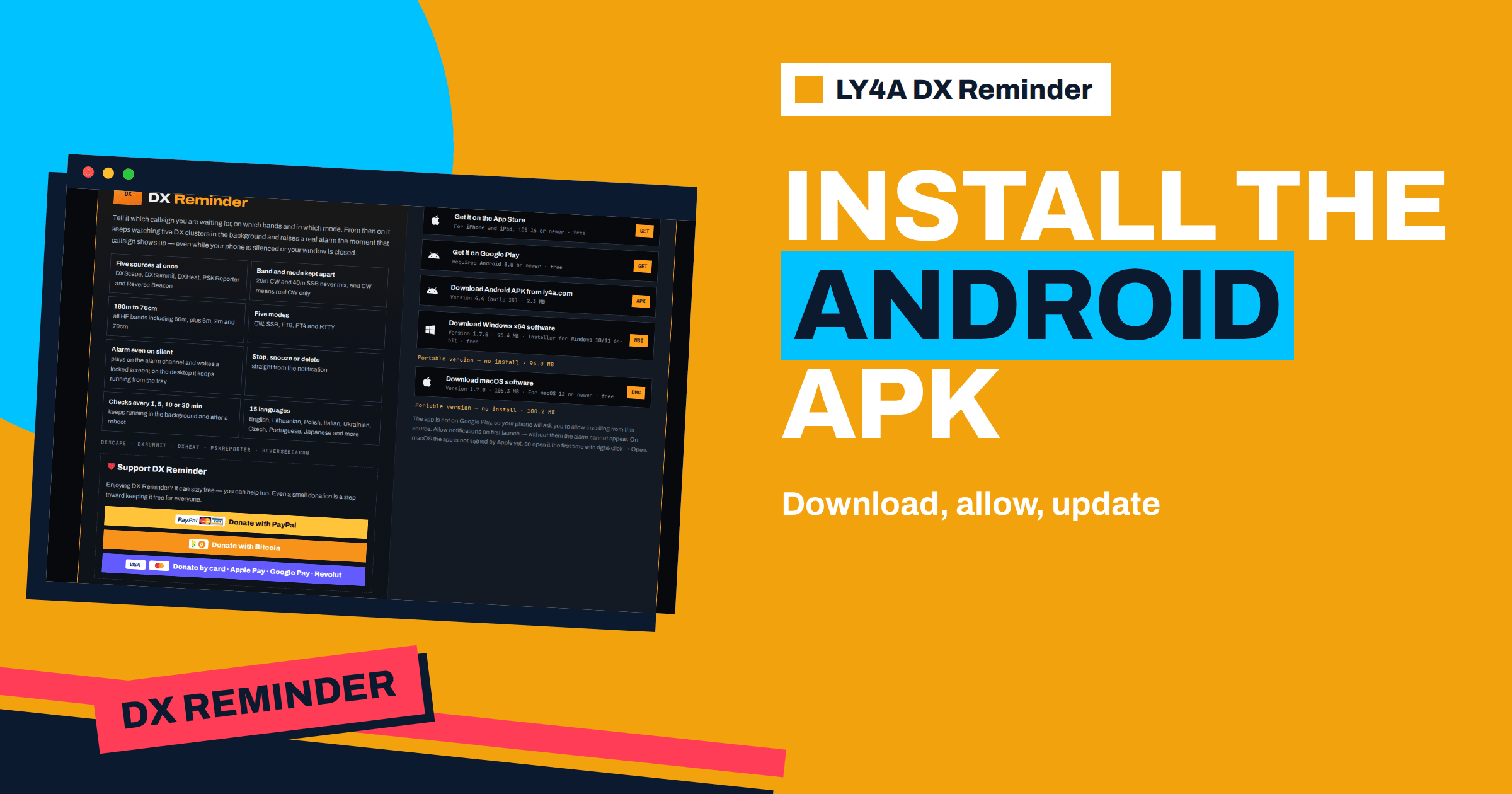
Installing an app from a website instead of a store feels strange the first time. The phone asks for permissions that you do not usually see, warns about the type of file and wants you to confirm that you trust the source. None of this is a fault. It is how Android treats any app that arrives as a file, and it is the way that LY4A DX Reminder reaches many Android phones. This guide takes you through the DX Reminder Android APK installation from the first tap to the first alarm, explains what each prompt means, shows how to keep the app up to date, offers a short list of fixes for the errors that people meet and lists the settings that you should check afterwards. It follows the install instructions on ly4a.com and the notes in the list of changes, and the steps are the same on a phone and on a tablet.
What You Need Before You Start
The app runs on Android 8.0 or newer, as the page states. The current Android build, version 4.4 (build 35), is a small file of about 2.3 megabytes, which downloads in seconds even on a modest connection. It needs no account and collects nothing, according to the install notes. Before you begin, check three things: that the phone has at least a few megabytes of free storage, that you are connected to the internet and that you are using the browser that you normally use, such as Chrome or Firefox, because the permission in the next section is granted to that browser. Use the page of the project, ly4a.com, as the only source of the file. An APK from an unknown site is not the same file, and the whole security model of installing from a website rests on knowing where the file came from.
Step 1: Download the File
Open ly4a.com in the browser of the phone. In the section “Get it on your device”, tap the button to download the Android APK. The page names the version and the size next to the button, so you can check that what you receive matches. Your browser may warn that this type of file can harm the device. The install notes say that this is expected and that you should allow the download. The warning is generic: browsers show it for every APK, whatever its content, since an APK is an installable program. If you want to be careful, compare the size shown in the browser’s download list with the size on the page. A file that is much smaller or larger than the page says deserves suspicion, and an interrupted download will often be smaller.
Step 2: Open the Downloaded File
When the download finishes, tap the notification, or open the Downloads folder of the phone, and tap the file. Android now explains that the browser is not allowed to install apps. This is the point at which the prompt about the source appears. On most phones the message offers a button to the settings, and from there you turn on the option to allow installing apps from this source for your browser. Then go back to the file. The exact name of the setting differs between makers, and it is usually found under Settings, then Apps, then Special access, then Install unknown apps, or in the Security section. If you cannot find it, search the settings for “unknown apps” or “install unknown”.
The install page explains why the phone asks: the app is not installed from a store, so Android treats its source as one that needs your confirmation. Permission is given to the browser as an installer, not to the app, and you can switch it off after the installation. It is a good habit to turn it off, so that the browser cannot install other files in the future.
Step 3: Install and Open
Back in the installer, tap Install. The package is small and installs in a moment. Android may offer a security scan by Google Play Protect, which checks the app against a list of known threats and is a helpful extra step. When the installation is finished, tap Open. You will see the title screen, from which you can choose the language, as the article about the first setup and the first callsign shows, and then enter the app.
Step 4: Allow Notifications and Alarms
On first launch, the app asks for permission to send notifications. Allow it. The install page says in plain words that without notifications the alarm cannot appear. If the app also asks for Alarms and reminders permission, allow that too, otherwise the checks can be delayed by the system. On recent Android versions, this permission controls whether the app can schedule exact timing for its checks. The same page explains that the Android version of the app watches in the background and keeps running after a reboot, which is why these permissions matter more than for an ordinary app that you open and close.
Three more settings are worth a look. The first is the battery setting: if the phone restricts background activity for the app, the watching can pause. The second is the full-screen alarm behaviour: Android 14 and later give full-screen alarms only to apps that the system treats as alarm clocks, and the settings of the app check this and lead you to the right system screen. The third is the sound: you can choose one of the system alarm sounds or a music file of your own. The article on the alarm on a silent phone and the one on alarm settings cover these in detail.
The Steps at a Glance
| Step | What you do | What to expect |
|---|---|---|
| 1. Download | Tap the Android APK button on ly4a.com | A browser warning about the file type; allow it |
| 2. Open | Tap the downloaded file | A prompt that the browser may not install apps |
| 3. Allow the source | Turn on installing from this source for the browser | Return to the file |
| 4. Install | Tap Install, then Open | The title screen of the app |
| 5. Permissions | Allow notifications, and Alarms and reminders if asked | The alarm can appear and checks are on time |
| 6. Tidy up | Turn off the install permission of the browser | No other file can be installed by it |
Keeping the App Up to Date
An app that is installed from a file does not receive updates from a store, so the app takes care of it. Since version 3.6 the app asks ly4a.com at startup and, if there is a newer release, offers to download it. There is a button in the settings to ask at once. Version 4.3 added a further check: the app learns from the site whether the version in use is still supported. A version that has fallen behind is asked to update at every start, and one that is no longer supported shows only the download screen until it is updated. The entry in the list of changes stresses that nothing changes today and that your callsigns and reminders survive the update either way. To update, follow the offer, allow the install once more if the phone asks and open the app. Because the new file installs over the old one, your list stays in place. The article about the five sources is a good next read.
It is wise to remove the permission for the browser again after the update, and to download only from ly4a.com. If an update offer ever sends you to a different address than the project’s own site, stop and check before you continue.
Troubleshooting Common Errors
- “App not installed”. This may appear if an older copy signed differently is already on the phone, if the file is damaged or if there is not enough storage. Download the file again, and if you have a copy installed from another source, remove it first. Your callsigns are kept inside the app, so remember to note them before uninstalling.
- “There was a problem parsing the package”. The download is incomplete or corrupt, or the phone runs a version older than Android 8.0. Check the size and the version of Android.
- The install button is grey. The permission for the browser is not on, or a parental control or device policy blocks installs from outside a store. On a work phone, the administrator may need to allow it.
- The file cannot be opened. Some file managers do not offer to install an APK. Use the Downloads app of the phone or the notification of the browser.
- The alarm never rings. The installation is probably fine, and a permission is missing. Check notifications, alarms and reminders, and the battery setting.
- Play Protect warns about the app. The scan may show a notice for apps that it does not know. Read it, and continue only if you downloaded the file from ly4a.com.
Tablets, Work Phones and Special Cases
The same steps apply to a tablet, with the same limits: Android 8.0 or newer and permission to install from the browser. A phone managed by an employer or a school may block installs from outside the store, and in that case the choice is not yours to make; ask the administrator, or use a personal device for the app. A phone with a restricted battery policy, as some makers apply to unknown apps, needs the battery setting to be set to unrestricted for the watching to be reliable. Family accounts with a child profile may also refuse the install. If you use two profiles or a work profile on the phone, install the app in the profile where you want the alarm to ring, since an app in a work profile may be paused when that profile is switched off.
About Trust and Security
Installing software from a file is a decision about trust. The reasons that make this one reasonable are visible on the site: the project publishes a privacy page that describes what the apps keep and send, the Android app has no server of its own and keeps its data on the device, and it contains no analytics, no crash reporting and no advertising. Nevertheless, general rules for sideloading apply to every file you install. Use the official address, keep the phone updated, let Google Play Protect scan the file, look at the permissions that the app asks for and remove the install permission of the browser when you have finished. An APK is just a package, and its safety depends on who made it and where you obtained it.
After the Install: A Short Checklist
- Choose the language and add your first callsign with the band and mode cells that you really want.
- Check that notifications and the alarm permission are on and that the settings show no warnings.
- Test the alarm once, with the phone silenced and locked.
- Note the version number on the home page of the project, so you can see when an update appears.
- Turn off the install permission of the browser.
The Bottom Line
To install the DX Reminder Android APK, download it from ly4a.com, allow the download in the browser, open the file, turn on installing from this source for the browser, tap Install and Open, then allow notifications and the alarm permission. The file is about 2.3 megabytes and needs Android 8.0 or newer. The app checks ly4a.com at startup for new versions and for support, and your callsigns and reminders survive updates. Fix common errors by downloading the file again, checking storage and the Android version and removing a conflicting copy. Afterwards, check the battery and alarm settings, test the alarm and switch off the install permission of the browser.
Frequently Asked Questions
Why does my phone warn me when I install the APK?
Because the file comes from a website and not from a store. Android asks you to confirm the source for the browser, and browsers warn about every APK file.
Which Android version does DX Reminder need?
Android 8.0 or newer. The current build, 4.4, is about 2.3 MB in size.
Will an update erase my callsigns?
No. The list of changes says that callsigns and reminders survive updates, including the update that a no longer supported version requires.
How does the app tell me about a new version?
It asks ly4a.com at startup and offers to download a newer release. A button in the settings checks at once.
Should I leave the install permission on for my browser?
It is better to turn it off after installing, so that the browser cannot install other apps without a new decision.
Why does the alarm not ring after installing?
Check that notifications are allowed, that the Alarms and reminders permission is on and that battery saving does not restrict the app.