DXpedition Alarm: Chase a New One With DX Reminder
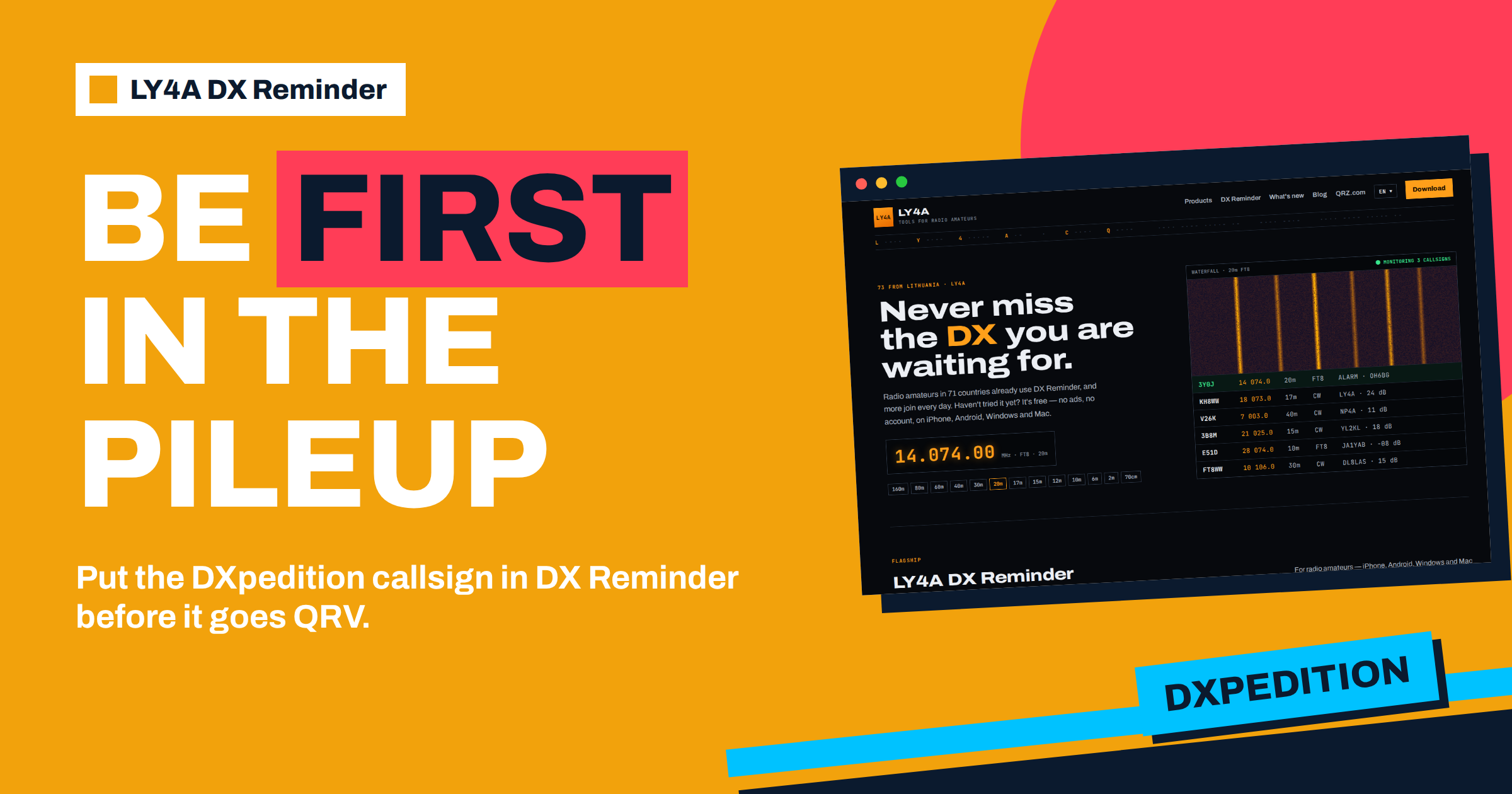
A DXpedition is a short window of opportunity. A team travels to a rare island or country, sets up antennas in a few days, operates for one or two weeks and leaves. Thousands of stations want a contact, and the first hours decide who gets an easy one and who fights through a huge pileup. The best preparation is to know the moment it appears. This guide shows how to set up a DXpedition alarm in LY4A DX Reminder: how to find the callsign before the trip, how to enter it with the right bands and modes, which sources help you hear about it first, what to do when the alarm sounds, and how to avoid the mistakes that cost a contact. It uses the features that the project describes on ly4a.com, and it does not promise anything that the app does not do.
What Makes a DXpedition Different
An ordinary rare station may be on the air for months, and you can wait. A DXpedition is limited by time and by conditions. The operators work around the clock for a few days, the propagation to your location opens only for some hours, and the activity moves from band to band and between CW, SSB and digital modes. A team may be on 17 metres CW in the morning and 40 metres SSB at night. To get a new one, you need to be at the radio in the right hours and to know where to look. The alarm solves the first part, because it watches for you, and your preparation solves the second.
Step 1: Find the Callsign Early
The callsign is usually announced before the operation, and sometimes only a few days before. The sources are the DX news bulletins, the expedition’s own website and social media pages, and the announcements in the clusters. The article on DX news bulletins and the expedition calendar describes where to look. Note the callsign exactly, with any prefix or suffix, since a wrong letter means a missed alarm. Some expeditions use more than one callsign, for example one for CW and SSB and another for a special mode, or a different call for each operator at a station. Check the plan and enter every callsign that matters. If the callsign is not yet confirmed, wait for the confirmation instead of guessing.
Step 2: Decide Which Slots You Need
A new entity is not equally valuable on every band and mode. DX Reminder keeps bands and modes apart: 20 metres CW and 40 metres SSB never mix, and CW means real CW only. This lets you ask only for the slots that you need. The bands run from 160 metres to 70 centimetres, with the five modes CW, SSB, FT8, FT4 and RTTY. The article on the bands and modes table explains how a reminder is built from a callsign, a band and a mode, and how the frequency tolerance works. For a DXpedition, a sensible approach follows your own status.
- The entity is a new one for you. Ask for all the bands and modes that you can work from home. Any contact is valuable, so a wide set of slots is right.
- You need only a band or a mode. If you have the entity on 20 metres and need 80 metres, ask only for 80 metres, in the modes you use. This reduces the number of alarms.
- You are chasing for an award. Match the slots to the award. For an all-band chase, include every band that your antennas can reach.
- Your antennas limit you. If you have no antenna for 160 metres, do not ask for it. An alarm that you cannot use is only noise.
| Your situation | Slots to add | Why |
|---|---|---|
| New entity, good HF antennas | All HF bands, CW, SSB and FT8 | Any contact counts |
| Need a mode only | The bands you can reach, that mode | Fewer alarms |
| Need a band only (for example 80 m) | That band, your modes | Avoid alarms for slots you have |
| Weak antennas | The best band or two | Alarms you can act on |
| Chasing an all-band award | Every band you can reach | Completes the slots |
Step 3: Enter the Reminder
Add the callsign in the app, select the bands and modes, and save. The details of the first setup are in the guide to the first callsign and the first alarm. You can enter the callsign before the expedition is on the air: the app watches for it, and nothing happens until a spot appears. This is the main advantage of doing it early. When the team arrives and the first operator calls CQ, you are already covered, whatever you are doing. If you keep a list of wanted entities and their callsigns, as in the article on the wanted list, add the new callsign to it, so that the record is complete.
Step 4: Choose Sources and Speed
The app watches five sources: DXScape, DXSummit, DXHeat, PSK Reporter and Reverse Beacon. They differ in speed, and for a DXpedition the difference can matter. A human spot on a cluster page appears after a person has heard the station and typed the spot. A skimmer, such as the Reverse Beacon, can report a CW signal within minutes of the first CQ, and PSK Reporter shows digital signals as soon as a receiver decodes them, without waiting for a person. The guide to the live PSK Reporter feed describes how the app uses it for fast alarms. On Android, the app checks every 1, 5, 10 or 30 minutes, so for a DXpedition it is sensible to choose the shortest interval while the expedition is on the air. On iPhone, the site checks the clusters every minute for the callsigns that you watch.
Step 5: Prepare the Phone or the Computer
An alarm that does not reach you is useless. Go through a short list. On Android, allow notifications and the alarm permission, check that battery saving does not restrict the app and test the alarm with the phone silent and locked, as in the article on testing the alarm. On iPhone, check that notifications are on. On the computer, run the desktop app from the tray and make sure that the machine does not go to sleep. If you use two devices, see the guide on using a phone and a computer together. Choose an alarm sound that you cannot ignore, and keep the phone near you in the hours when the expedition is expected to be on your bands.
Step 6: When the Alarm Sounds
The alarm tells you the callsign, the frequency, the mode and the spotter or the source. The next minute is the one that counts, and a plan helps.
- Read the alert. Note the band, the frequency and the mode. Check whether the entry is for a slot you need.
- Tune the radio. Go to the frequency, in the right mode, and listen. Check that you hear the station and see how the pileup behaves, as the article on your first 60 seconds after an alarm describes.
- Listen before you call. Find out whether the DX station works split, and on which frequency it listens. Many DXpeditions listen up, and calling on their frequency is wasted time.
- Call in the right way. Give your callsign once, clearly, with correct timing, in the pattern that the station uses. Follow the instructions of the operator. The background on the Fox and Hound mode covers the digital case.
- Log and confirm. Record the contact at once. Check the callsign, band and mode, and upload it to the services that the team uses.
The pileup can be large, so patience is part of the method. A new station on the band may be heard by many at once, and the first minutes are the busiest. Do not drop your call if you do not get through at the first try. Listen for the pattern in which the operator picks callers, such as by call area, and try again when your group is called.
Avoiding the Mistakes That Cost a Contact
- The wrong callsign. A typing error in the reminder means no alarm. Compare the callsign with the announcement.
- The wrong band or mode. If you set CW only, an SSB spot will not alarm you. Think about what you need.
- A silent phone. Test the alarm in the situation in which you will rely on it.
- A sleeping computer. A desktop app cannot alarm when the machine is suspended.
- Too many reminders. If every spot makes a noise, you may start to ignore the alarm. Keep the list focused.
- Calling on the DX frequency. Listen first, and use the split that the operator announces.
- Forgetting to remove the reminder. When the expedition ends, delete or switch off the reminder, so that old entries do not clutter the list. Switching a combination off keeps its frequency and settings, which is useful if the team returns.
Planning Around Propagation
An alarm tells you that the callsign has appeared, but whether you can work it depends on the path. Before the expedition, look at the direction and the distance from your station to the island, and think about which bands should open and when. The grey line at your sunrise and sunset, and the solar conditions of the day, change the picture. Use the alarm as the trigger and your knowledge of the path as the guide: if the alarm sounds on a band where the path is closed, you will hear the signal only if it is strong, and you may wait for the opening. This is also why the alerts that include the spotter and the signal report help, since they tell you something about the path from another station’s point of view. A DXpedition in the Pacific and a station in Europe have a short window of a few hours a day on the best bands, and the alarm lets you do other things until the window opens.
After the Expedition
When you have worked the station, update your wanted list and your award record, and delete or switch off the reminder. Look at the confirmation route: many expeditions upload to Logbook of The World and Club Log, and some offer an online request for a paper card. Keep a note of the contact in your own log in case the upload is delayed. If you missed it, read the reports of the team and note when the bands were open, so that you are better prepared for the next one. Each chase teaches you something about the paths from your location, and over the years you will know the times of the openings by heart.
The Bottom Line
A DXpedition alarm in DX Reminder starts with the callsign: find it early, enter it with exactly the bands and modes that you need and let the app watch while you live your life. Use fast sources, choose short checking intervals while the team is on the air, test the alarm on your phone and your computer and keep a plan for the first minute. When the alarm sounds, tune, listen, find the split and call in the way the operator asks. With a focused reminder and a rehearsed routine, you meet the team in the first hours of the operation and not in the last.
Frequently Asked Questions
Can I add a DXpedition callsign before it is on the air?
Yes. The app watches for the callsign, and nothing happens until a spot appears. Adding it early means you are covered from the first CQ.
Which bands and modes should I choose for a DXpedition?
The ones that you need and can work. For a new entity choose all the bands and modes your antennas reach. For a missing band or mode choose only that slot.
Which sources are fastest for a new expedition?
Skimmers and digital decoders often report a signal before a person spots it. DX Reminder watches Reverse Beacon and PSK Reporter as well as the cluster pages, so it can use them.
How often should the app check during an expedition?
On Android choose the shortest interval, one minute, while the team is on the air. On iPhone the site checks every minute for the callsigns that you watch.
What if the expedition uses several callsigns?
Enter each callsign that matters as a separate reminder with its bands and modes, and check the team’s plan to know which one is used for which mode.
Should I delete the reminder afterwards?
Switch it off or delete it when the expedition ends. Switching it off keeps the settings, so it is easy to turn on again if the team returns.