DX Reminder on Phone and Computer: Two Devices Together
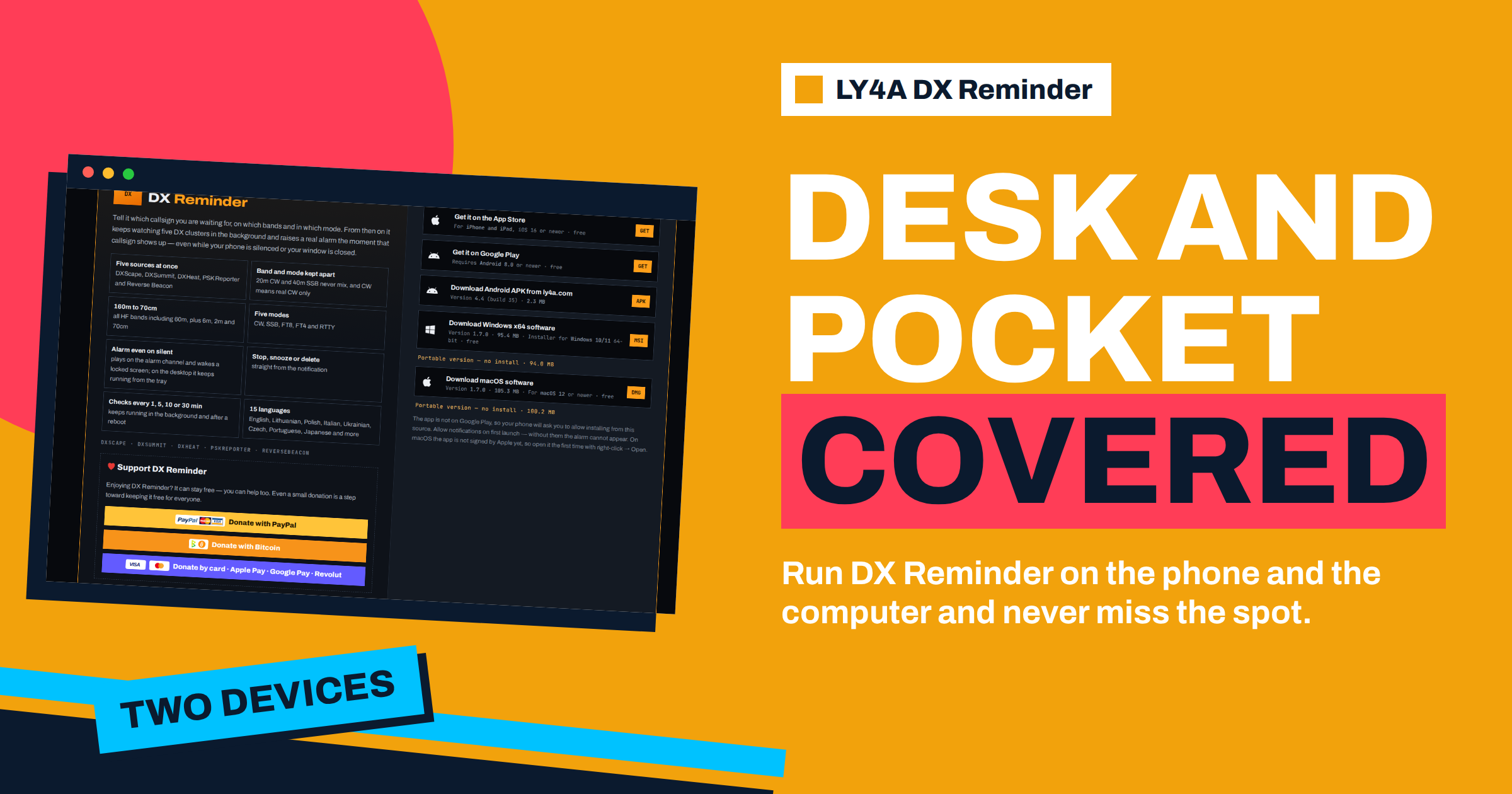
Many radio amateurs have two places where a DX alarm could reach them: the computer in the shack and the phone in the pocket. Some people also keep a spare tablet or a laptop in the car for portable operating. LY4A DX Reminder runs on iPhone, Android, Windows and Mac, so a natural question is whether you can use DX Reminder on your phone and computer at the same time, and what that setup looks like in practice. The short answer is yes. The longer answer is that the devices are independent of each other, by design, and that this has consequences for how you set them up, what you should expect when the spot appears and how to avoid being woken twice for the same callsign. This guide explains those consequences using what the project says about its apps and its privacy page.
Why Each Device Keeps Its Own List
LY4A DX Reminder has no accounts. The privacy page states that the Android, Windows and macOS apps have no server of their own and keep everything on the device: the callsigns you are watching, the bands and modes chosen for them, your settings and the spots already seen. Nothing is sent anywhere, and there is nothing to sign up for. This is good for privacy, since there is no profile that could be leaked, and it also explains the behaviour of two devices. If there is no account, there is no place where a list could be stored and shared, so the phone does not know what the computer is watching and the computer does not know what the phone is watching. Each device has its own list, its own settings and its own alarm.
The iPhone version is a little different, and the project explains why on the same page. iPhone does not allow an app to keep watching in the background, so for the iPhone the watching is done by the ly4a.com site. The app sends the site an anonymous device identifier, the notification token, the language, the callsigns with their bands and modes and the alarm settings. There is still no e-mail, no name and no account, so this list also belongs to that one phone and does not link to your other devices. The article about how the server watches the clusters for an iPhone describes the process in detail.
What Each Device Does Best
The two devices complement each other. The phone is always with you, and it can wake you at night, so it covers the hours when you are away from the shack, asleep or travelling. The computer is where the radio is, so an alarm on the computer can be seen at the moment when you can act on it, and the desktop app keeps running from the tray even when its window is closed. The Windows and Mac apps are described as continuing to watch in the background from the tray, and the project says to quit them from the tray menu. A desktop alarm is therefore ideal for a session at the desk, a contest weekend, or the evening when you operate and do not want to look at a cluster page.
| Situation | Best device | Why |
|---|---|---|
| Operating at the desk | Computer | The alarm appears where the rig and the logger are |
| Away from home, shopping, at work | Phone | It is always with you and can sound on silent |
| Night-time low-band chasing | Phone, close to the bed | A locked screen is woken by the alarm |
| Contest weekend | Both | One at the radio, one in the pocket for breaks |
| Travelling with a laptop | Laptop and phone | The laptop at the portable station, the phone in the tent |
Think of it as two lines of defence. The computer gives you the immediate alarm when you are at the radio, the phone gives you the same alarm when you are not. If you leave the shack for lunch, the phone alarm is the one that reaches you, and when you come back and sit down, the computer alarm is the one in front of you.
Setting Up the Second Device
Because nothing is shared, the second device needs the same setup work as the first, but you have done it once and know the screens. Install the app as shown on the home page of the project, or follow the guides to the desktop install on Windows and Mac and the first callsign and bands setup. Then enter the same callsigns and the same band and mode choices. It helps to write the list of wanted callsigns in a text file first, so you can type it on both devices without trying to remember it. The same file serves as a record of what you have asked the apps to watch. When you add or remove a callsign later, change it on both devices in the same sitting, since nothing will carry the change across.
Mirroring does not need to be perfect. A common choice is to put the complete list on the phone, which is your safety net, and a shorter list on the computer, limited to the bands and modes you actually operate at the desk. For example, a station with a good antenna for 20 and 15 metres and a CW rig can keep only CW on those two bands on the computer, and let the phone watch all bands. You then see alarms at the desk only for what you can really work.
Avoiding Double Alarms
If both devices watch the same callsign on the same band and mode, both will raise an alarm when it appears. This is often what you want, since you are at the desk and the phone is next to you, but it can be a nuisance when the alarm rings twice within the same second. The remedy is not a feature but a habit. Decide, for each hour of the day, which device is on duty. A few practical options:
- Different lists. Keep the phone for the wanted ones and the computer for the ones you work at once.
- Different alarm sounds. The Android app lets you choose a system alarm sound or a music file of your own, as the article on alarm settings describes, so you can tell by ear which device is calling.
- Quit the desktop app when you leave. The tray menu has a quit command, so when you are away and the phone is on duty, the computer does not ring in an empty room.
- Snooze or stop on the device that rang. Stop and snooze are available straight from the notification. Because the devices do not communicate, stopping one does not stop the other, so handle both if both rang.
Checking Intervals and Timing
The Android app checks every 1, 5, 10 or 30 minutes and keeps running in the background and after a reboot. The iPhone watching is done by the site, which checks the clusters every minute for the callsigns that you watch, according to the privacy page. The desktop apps run from the tray. With two devices, the effective response is the quicker of the two. If you set the phone to a long interval to save battery, the computer, which has mains power and no battery concern, can keep a short interval and be the first to react while you are at the desk. This is a good use of the second device: the computer is a power-rich, always-on watcher, and the phone can be set to a more relaxed rhythm.
Remember that the quality of the alarm depends on the sources, not on the device. The app asks the same public services that a person would open in a browser: DXScape, DXSummit, DXHeat, PSK Reporter and Reverse Beacon. A spot that none of them show cannot raise an alarm on any device. If the terms are new to you, the general background on the DX cluster network and on the CW Skimmer software explains where the spots come from, and a callsign that is heard by skimmers or digital decoders appears in these feeds even when no human has spotted it by hand. The guide to the sources explains what each one contributes.
A Sample Week With Two Devices
Consider an operator who works from home on weekday evenings and weekends. On weekdays he leaves the house at 7 in the morning and returns at 5. The phone watches all day, with the full wanted list, and wakes him if a rare callsign appears on the low bands at night. At 5 in the afternoon he starts the computer, the desktop app starts in the tray and watches the list for the bands that his antennas cover. In the evening, the phone stays charging near the bed, with the sound at full volume, while the desktop does the work. At the weekend, during a contest, the phone is in his pocket and the computer sits at the radio, and the two lists differ a little: the computer watches the multipliers that he needs, and the phone watches the full list, so that a rare station is not missed when he leaves for a meal.
The setup has one more advantage: redundancy. If the phone battery dies, the computer is still watching. If the computer is restarted for an update, the phone is still on duty. A single watcher is a single point of failure, and for a hobby that rewards being there at the right minute, two independent watchers are worth the extra five minutes of setup.
Updates and Versions Across Devices
The apps have their own version numbers: the home page shows Android 4.4 and Windows and macOS 1.7.0 at the time of writing. They are updated separately, because each is downloaded or installed separately, and an update on one does not change the other. The project explains that an app can learn from ly4a.com whether its version is still supported and will ask for an update when it falls behind. Your callsigns and reminders survive an update on the device, so there is no need to retype them. It is sensible to check both devices after you update one, for example to confirm that the alarm test still works. The article on testing the alarm gives a checklist that you can run on each device in turn.
Privacy With Two Devices
Using two devices does not increase what is shared. The apps contain no analytics, no crash reporting and no advertising, and the only thing leaving a phone or computer is the request that the app sends to the public cluster services with the callsign being looked for. The iPhone adds the identifier and the token for the server-side watching. Uninstalling an app removes everything it kept on that device, and there is no copy anywhere else. This is also the reason the lists are separate. For the details you can read the article about privacy and the privacy page of the project.
The Bottom Line
You can use DX Reminder on a phone and a computer at the same time, and the two work well together. Each device keeps its own list, because the project has no accounts and stores everything on the device, so you set up the second one in the same way as the first and keep the lists matching by hand. Use the computer for alarms at the radio and the phone for everything else, choose different lists or sounds to avoid double alarms, quit the desktop app when you leave home, and test both. The result is a watch that follows you from the shack to the street, and it costs only a few minutes of setup.
Frequently Asked Questions
Do the phone and the computer share the same callsign list?
No. The apps have no accounts and keep their data on the device, so each device has its own list. Enter the callsigns on both, and update both when you change them.
Will both devices alarm for the same spot?
Yes, if both watch the same callsign, band and mode. Use different lists, different sounds or quit the desktop app when you are away if you want only one to ring.
Does stopping the alarm on my phone stop it on the computer?
No, the devices do not communicate, so each alarm is stopped or snoozed separately on the device that rang.
Can I run the desktop app and the phone app at the same time?
Yes. The desktop app keeps watching from the tray, and the phone app watches in the background on Android or through the site on iPhone.
Which device should I trust at night?
The phone, kept charged and near the bed with the alarm sound loud enough to wake you. The alarm can wake a locked screen, as the project describes.
Do I need an account to use two devices?
No. There is nothing to sign up for. You install the app on each device and enter your callsigns there.