DX Reminder Unsigned App Warning on Windows and Mac
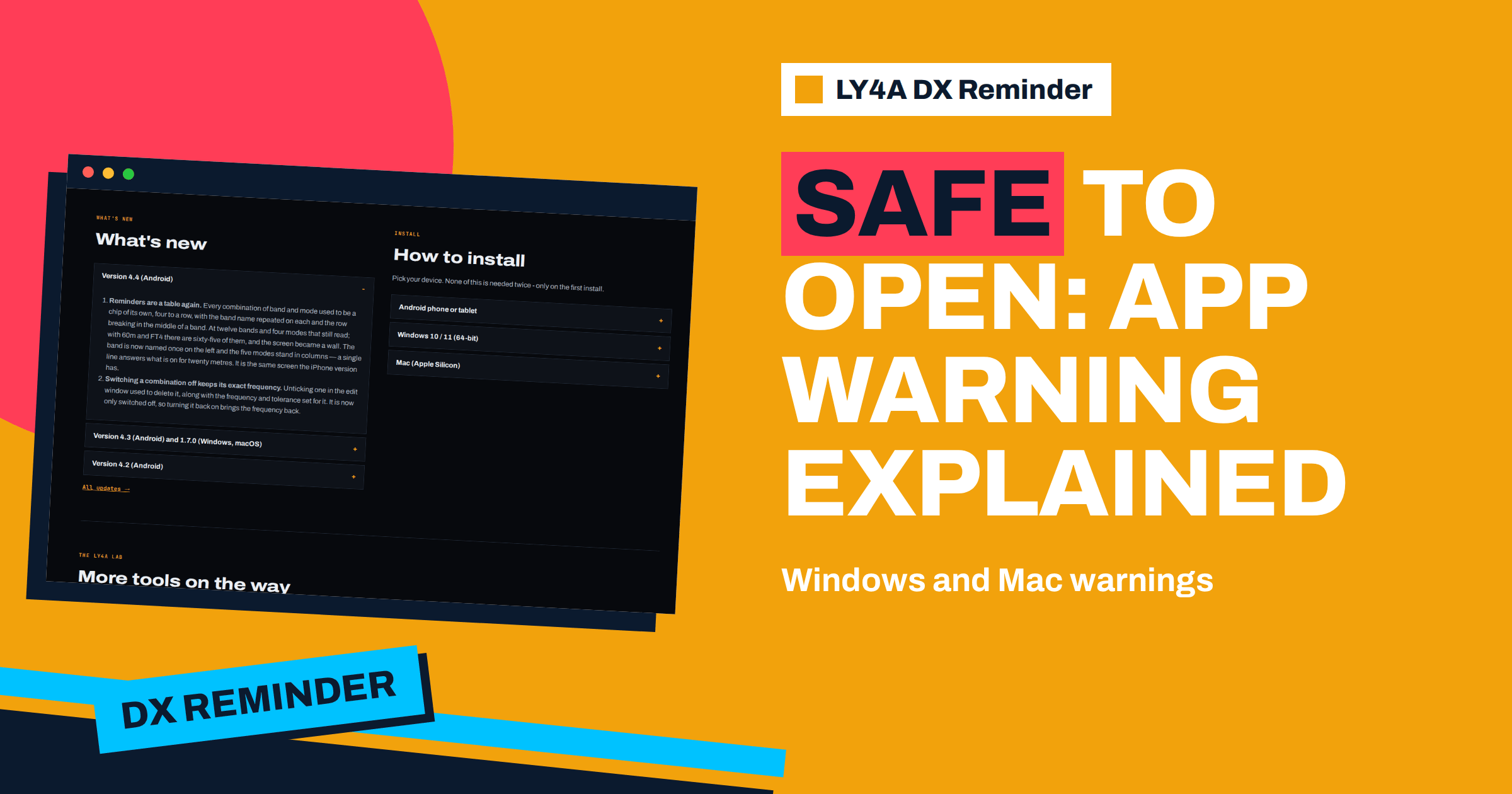
You download a program, you start it, and a big blue window says “Windows protected your PC”. Or you open a disk image on a Mac and read that the application “is damaged and can’t be opened”. It looks alarming, and it is meant to be, because the operating system is built to make you stop and think. For the desktop versions of LY4A DX Reminder the warnings are expected, and the project explains them on its install page. This article is about the DX Reminder unsigned app warning: what Windows SmartScreen and macOS Gatekeeper actually check, why this app triggers them, what it is sensible to click, how to verify that the file is the one you meant to download and what the one-time steps look like on each system. The aim is that you neither click through blindly nor give up on a harmless program.
What an Unsigned App Is
Software can carry a digital signature, a cryptographic seal that proves who published it and that the file has not been altered since. The signature is issued through a certificate that the publisher buys from a trusted authority, and on the Apple side the publisher also needs a paid developer account. The operating system checks the signature when you open the file for the first time. If it is missing, or if the publisher is not known to the system, the system shows a warning. The idea of code signing is useful: it makes it harder to distribute malware under a false name. But an unsigned program is not the same as a malicious one. Many small tools, hobby projects and open-source programs are unsigned because the certificate costs money that a small project does not always have.
The install page of ly4a.com states the position plainly. On Windows, the app is not signed with a paid certificate, and that is all the warning means. On the Mac, the app is not signed by Apple yet, and signing would remove the warning but requires a paid Apple developer account. The warnings are therefore a statement about the signature and not a finding about the content.
Windows: “Windows protected your PC”
On Windows 10 and 11, the message comes from Microsoft SmartScreen, a reputation service. It looks at the file, its publisher and how widely it has been downloaded, and warns about files that are new or unsigned. The steps on the install page are short.
- Download the .msi file, the 64-bit installer for Windows 10 and 11, and run it.
- When the blue window appears, click More info. This reveals a second button.
- Click Run anyway.
- Follow the installer. You get an entry in the Start menu and a shortcut on the desktop.
The portable version, which needs no installation, can bring the same message on its first start, and the steps are the same. Once the app has been allowed, Windows remembers the decision, and the later starts do not warn again. Remember that closing the window does not stop the app: it keeps watching from the system tray, and you quit it from the tray menu, as the article on the desktop version explains.
macOS: Three Different Messages
Apple’s protection, Gatekeeper, checks that an app was signed by an identified developer and has been notarised by Apple, which means that Apple has scanned it. An app without these goes through a stricter path, and the details depend on the version of macOS. The install page of the project distinguishes between them.
| macOS version | What you see | What to do |
|---|---|---|
| macOS 12 to 14 | A normal double-click shows a warning with no Open button | In Applications, right-click the app, choose Open, then Open again in the warning |
| macOS 15 (Sequoia) and newer | A warning after you try to open the app | Go to System Settings, Privacy and Security, scroll down and click Open Anyway |
| Any version, “damaged and can’t be opened” | A message that the file is damaged | The file is fine; remove the quarantine flag with one command in Terminal |
The steps begin the same way for all versions: open the downloaded .dmg file, drag LY4A DX Reminder into the Applications folder and eject the disk image. The page is explicit that these actions are needed only once.
The “Damaged” Message and the Terminal Command
The message that an app is damaged is the one that worries people most. On macOS, files downloaded from the internet carry a flag, called the quarantine attribute, which tells Gatekeeper to inspect them. For an unsigned app, the inspection can end with this message, even though nothing is wrong with the file. The install page says so: the file is fine, and that is how macOS describes an unsigned app. The remedy it gives is a command to paste in Terminal:
xattr -dr com.apple.quarantine "/Applications/LY4A DX Reminder.app"
What the command does is simple. The program xattr edits extended attributes of a file, the option -d deletes an attribute, the option -r applies it to everything inside the folder of the application, and com.apple.quarantine is the name of the flag. After the command, macOS no longer treats the app as a fresh download from the internet, and it opens normally. Two cautions go with this. Use the command only for a file that you trust, because it removes a protection, and use it only with the path of this app and not with a wildcard or the Applications folder as a whole. Type it exactly as shown, with the quotes, since the name contains a space.
Is It Safe? What You Can Check
The warning does not tell you whether the file is safe, and a missing warning would not either. Safety depends on the source of the file and on what the program does. You can look at both.
- The source. Download only from ly4a.com. The addresses of the buttons on the page are on the same site, and the page uses a secure connection.
- The file. The page lists the size of each download: about 95.4 megabytes for the Windows installer, 94.0 for the portable Windows version, 105.3 for the Mac disk image and 100.2 for the portable Mac version, with the version number 1.7.0. A file that differs sharply from the numbers on the page should not be run.
- The behaviour. The privacy page says that the desktop apps have no server of their own, keep everything on the device, send only the callsign being looked for to the public DX services, and contain no analytics, no crash reporting and no advertising. This is a claim you can check with a firewall or a network monitor if you wish.
- Your own security software. Let your antivirus program scan the file before you run it. It costs nothing and adds a second opinion.
None of these steps proves that a file is harmless, but together they give a reasonable level of confidence for a small project with a public privacy statement. If you cannot verify the source, do not run the file, whatever the instructions say.
How SmartScreen Reputation Works
SmartScreen does not only check for a signature. It also builds a reputation for each file and each publisher from the experience of many users. A program that has been run without problems by thousands of people becomes known and the warning fades, while a new file, or a file that few people have downloaded, starts without reputation and triggers the message, even when it is perfectly clean. For a niche tool aimed at radio amateurs, the number of downloads is small by the standards of a large vendor, and every new version is a new file, so a warning on the first run is normal. The message offers the choice because the system cannot tell. It is exactly the same message that appears for many open-source tools and small utilities that you may already have installed.
Antivirus Programs and False Alarms
Security programs use similar logic. An unsigned executable that is rare and that starts a program in the background, as a DX watcher does, can be flagged by heuristic scanners that look at behaviour and reputation. If your antivirus quarantines the file, do not simply disable the program. Check the file with a second scanner, confirm the source and size again and, if you decide to trust it, add an exception for that one file. Report a false positive to the vendor of the security program, which is how the lists are corrected. On the other hand, if two or more scanners report a specific, named malware family and the size of the file does not match the page, delete it and download it again from the project’s own address.
Why Not Simply Sign the App?
The page answers this too. Signing the Windows app requires a certificate that costs money each year, and the Mac app requires a paid Apple developer account. For a small project that provides the app without charging for the download, the cost is a real consideration, and the project chose to document the one-time steps. Signing would remove the warnings, and until then the Android app, which is installed from a file, has a similar situation, with its own warnings about the source, covered in the article on the first setup.
If You Prefer Not to Bypass a Warning
You are entitled to refuse. If you are not comfortable with the steps, you have alternatives. You can use the Android or iPhone version instead, since the iPhone app is distributed through the store and the Android build follows its own install path. You can use the DX cluster websites directly, as the article on the five sources describes, and check them by hand. On a shared or work computer where installing unsigned software is not allowed, ask the administrator. A warning is a choice offered to you and not an obstacle placed against you, and there is no shame in saying no.
Portable Builds and the Warnings
The portable versions, which run without installation, are also unsigned, and the operating system treats them in the same way as the installers. On Windows, the first start of the portable program may show the SmartScreen window, and the same two clicks apply. On a Mac, the portable build is also subject to Gatekeeper, and the right-click and Open method, or Open Anyway, is used for it. A practical point for those who carry the portable version on a removable drive: if you copy the files to another computer, the second computer may show the warning again, because the decision is stored per computer. Keep a short card with the steps in the same folder, so that a club member or a friend can follow them without looking for the page.
After the First Run
Once the app is running, the warnings are behind you. The program checks ly4a.com at startup for new versions and, since version 1.7.0, for whether the installed version is still supported. An update is a new download, and on a Mac it may bring the same gatekeeping steps again, since a new file is a new download. Your callsigns and reminders survive the update. Set the language, enter your callsigns with the bands and modes you need and let the app work from the tray.
The Bottom Line
The DX Reminder unsigned app warning means that the desktop app is not signed with a paid certificate: on Windows, SmartScreen says “Windows protected your PC” and you click More info and then Run anyway; on a Mac, you right-click and Open on macOS 12 to 14, use Open Anyway in Privacy and Security on macOS 15 and newer, and, if macOS says the file is damaged, remove the quarantine flag with the xattr command shown on the install page. These steps are needed only once. The warning describes the signature and not the safety of the content, so check that you downloaded from ly4a.com, compare the file size with the page and scan the file. If you prefer not to bypass a warning, use another version or the cluster websites.
Frequently Asked Questions
Why does Windows say “Windows protected your PC” for DX Reminder?
SmartScreen warns about unsigned or little-known files. The app is not signed with a paid certificate, which is all the warning means. Click More info, then Run anyway.
Why does my Mac say the app is damaged?
That is how macOS describes an unsigned app that carries the quarantine flag. The file is fine; the install page gives a Terminal command to remove the flag.
Do I have to repeat these steps every time?
No. They are needed once for each installation. A new download after an update may ask again on a Mac.
Is the xattr command safe?
It removes only the quarantine flag from the folder you name. Use it only for the app you trust, with the exact path from the install page.
How can I check the download?
Download only from ly4a.com, compare the file size with the number on the page and scan the file with your security software.
Will the warning ever go away?
Signing the app would remove it, but it needs a paid certificate on Windows and a paid Apple developer account on the Mac.